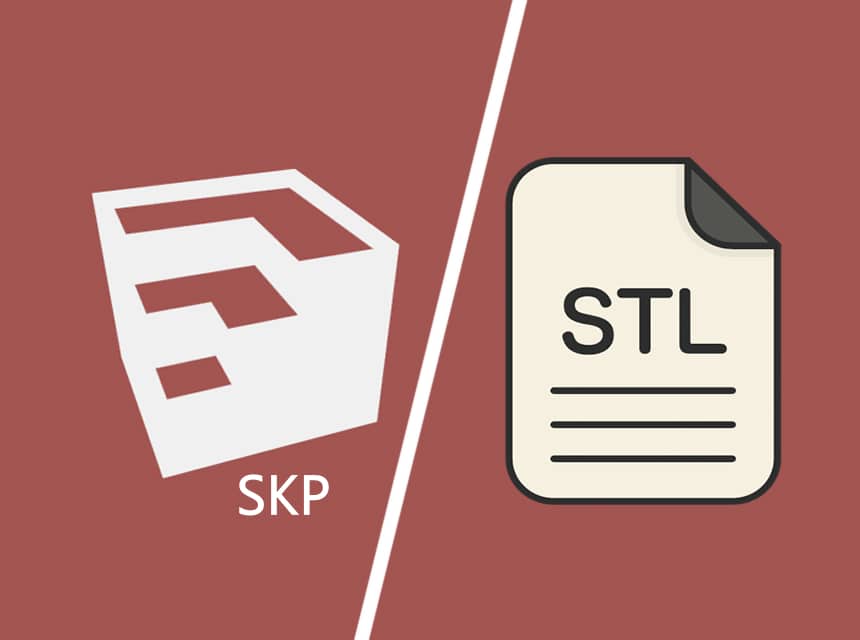


You do not need a gaming workstation just to send files to a 3D printer. If your workflow is mainly downloading an STL, opening it in Cura, PrusaSlicer, OrcaSlicer or Bambu Studio and generating G-code, a modern computer with 16GB of RAM is usually plenty. The hardware requirements climb when you also design parts in Fusion, build complex assemblies, sculpt in Blender, repair huge meshes, process photogrammetry or render scenes on the same machine.
That difference is the foundation of this guide. I am not ranking computers by the biggest GPU number. Instead, these picks cover five real 3D-printing workflows: best all-round Windows laptop, creator/Blender work, budget GPU acceleration, Mac, and professional CAD/workstation use.
If you already know the kind of work you will do, these three cover the most common buying decisions.


| Computer | CPU / GPU Class | Memory Target | Best For | Main Caveat |
|---|---|---|---|---|
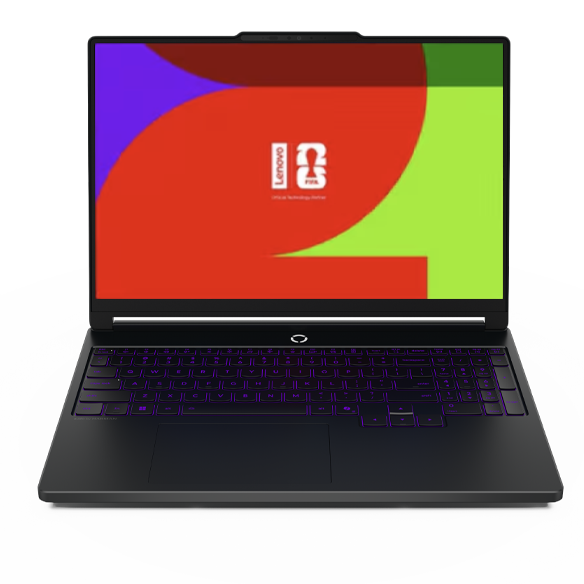
| Lenovo Legion 5i Gen 11 | Core Ultra 7-class + RTX 5060 8GB | 32GB preferred | Best overall: slicers, Fusion, Blender | Gaming-laptop size/battery tradeoff |
| ASUS ProArt P16 H7606WP | Ryzen AI 9 HX 370 + RTX 5070 8GB | 32GB+ | Blender, creator work, rendering | Premium cost; RAM is configuration-dependent |
| Acer Nitro V 15 | Core i9 / RTX 5060 8GB configuration | 32GB | Budget Blender + CAD | Lower-power GPU implementation than premium creator laptops |
| MacBook Pro 14 M5 Pro | M5 Pro CPU/GPU | 24GB base; more for heavy 3D | Best Mac: Fusion, Blender, slicing | No native full SOLIDWORKS client |
| HP ZBook Ultra G1a | Ryzen AI Max+ PRO 395 / Radeon 8060S-class integrated graphics | 64–128GB configurations | Professional CAD, large assemblies, ISV workflows | Expensive overkill for slicing-only users |
Configuration warning: laptop names often cover multiple CPUs, GPUs, memory sizes and displays. Always verify the exact RAM, GPU/VRAM and SSD in the listing before buying. The Amazon links in this guide point to specific currently indexed configurations, but sellers and selectable variants can change.
| Workflow | CPU | RAM | Graphics | Practical Target |
|---|---|---|---|---|
| Slicing only | Modern Core i5/Ryzen 5/Apple silicon class | 16GB | Integrated graphics are usually fine | SSD + 16GB RAM matters more than a gaming GPU |
| Fusion / general CAD | Strong single-core speed; modern Core i7/Ryzen 7 class | 16GB minimum; 32GB preferred | Integrated can work; midrange dedicated GPU helps complex scenes | 32GB + SSD is the sweet spot for serious hobby work |
| Blender / rendering / big meshes | 8-core-class or better | 32GB+ | Dedicated GPU; 8GB VRAM is a strong current target | RTX 5060/5070-class laptop is a sensible floor for frequent GPU rendering |
| SOLIDWORKS / professional CAD | x86-64 Windows CPU | 32GB recommended | Certified graphics/drivers preferred | Workstation-class Windows laptop if CAD income depends on it |
| Photogrammetry / huge scans | High-core-count modern CPU | 32–64GB+ | Fast dedicated GPU with substantial VRAM | Buy RAM/GPU for the reconstruction workload, not the printer |
These targets line up with current software guidance. Blender recommends 8 CPU cores, 32GB RAM and 8GB VRAM on Windows. Autodesk’s July 2026 Fusion guidance recommends 8+ performance cores/16+ threads, 32GB+ RAM and 8GB+ dedicated graphics for professional Windows workflows, while simpler modeling can run on much less. SOLIDWORKS 2026 lists 16GB RAM minimum, 32GB recommended, Windows 11 and certified graphics/drivers.
View Current Configurations at Lenovo
Recommended configuration: Core Ultra 7-class processor, GeForce RTX 5060 8GB, 32GB RAM if available/configurable, NVMe SSD, 15.3-inch WQXGA OLED display.
The Legion 5i Gen 11 is my default recommendation because it lands in the useful middle of the 3D-printing spectrum. It is dramatically more computer than you need for ordinary slicing, but it has enough CPU and GPU headroom to keep doing useful work when your hobby moves from downloaded STLs into Fusion, Blender and larger meshes.
Current Lenovo configurations pair Intel Core Ultra processors with RTX 50-series laptop graphics. A current Gen 11 RTX 5060 configuration provides 8GB of GDDR7 graphics memory, while the 15.3-inch WQXGA OLED panel gives you 2560 × 1600 workspace for CAD timelines, object trees and slicer previews.
The RTX 5060 is particularly useful if Blender is part of your workflow. Blender’s current recommended Windows target is 8GB VRAM, which this GPU configuration meets. You do not need RTX graphics to slice an STL, but CUDA/OptiX-capable NVIDIA hardware becomes meaningful when GPU rendering enters the picture.
The reason I prefer Legion over a thin office laptop is sustained performance. CAD rebuilds, mesh operations and rendering can hold CPU/GPU load for much longer than opening documents or browsing. A performance-oriented chassis gives the hardware more thermal room to maintain speed.
There is one buying trap: Lenovo sells many Legion configurations. Do not assume every “Legion 5i Gen 11” has 32GB RAM or the same GPU. For a machine you intend to keep through several years of CAD/3D work, I would target 32GB RAM and at least 1TB SSD where the configurator permits it.
Pros
Cons
Best for: serious 3D-printing hobbyists who use slicers plus Fusion and Blender and want one Windows laptop that will not immediately become the bottleneck.
View Current Configurations at Lenovo
Key configuration: AMD Ryzen AI 9 HX 370 (12 cores / 24 threads), GeForce RTX 5070 Laptop GPU with 8GB GDDR7, 32GB+ LPDDR5X depending on configuration, OLED display, fast NVMe storage.
The ProArt P16 is the pick when your “3D printing computer” is really a 3D-content-creation computer. ASUS positions the P16 for creative workloads and explicitly calls out 3D rendering. Current H7606WP specifications combine a Ryzen AI 9 HX 370 with an RTX 5070 Laptop GPU and 8GB of GDDR7 VRAM.
That pairing is a very good fit for Blender. You get the 8GB VRAM Blender currently recommends, a 12-core/24-thread CPU for CPU-heavy operations and NVIDIA hardware for accelerated rendering. It also exceeds what Fusion needs for typical hobbyist CAD.
The ProArt advantage over a gaming laptop is not that a 3D printer recognizes it differently. It is the creator-oriented package: OLED display options, NVIDIA Studio positioning, full I/O and a chassis designed to split the difference between mobile workstation and high-performance creator notebook.
It is also a good example of why exact configurations matter. ASUS currently sells ProArt P16 variants with different GPUs, RAM and displays. The linked Amazon listing is an H7606WP configuration indexed with RTX 5070 and 32GB RAM, but you should re-check the listing before purchase because some sellers upgrade storage or memory and may change warranty terms.
If your work is mostly PrusaSlicer and simple Fusion parts, the ProArt is overkill. You are paying for performance that earns its keep in Blender rendering, animation, texture work, large meshes, Adobe/DaVinci work and similarly heavy creator workflows.
Pros
Cons
Best for: Blender users, 3D artists, creators who render as well as print, and people who want one premium Windows machine for CAD plus content creation.
Linked configuration: Nitro V 15 ANV15-52-class laptop with Intel Core i9-13900H, 32GB RAM, 1TB SSD and GeForce RTX 5060 8GB. Acer’s current Nitro V 15 family supports RTX 5060-class graphics.
If you want an NVIDIA GPU and 32GB of RAM without paying creator-workstation prices, the Nitro V 15 is the value play. It gives you enough memory for larger models and an RTX 5060-class GPU that meets Blender’s recommended 8GB VRAM figure.
This is the machine I would choose over a similarly priced thin office laptop if you expect to render, use dense meshes or do GPU-heavy work. It is far more hardware than Cura or PrusaSlicer require, but that is the point: the extra cost buys capability for the software around the printer rather than changing the printer itself.
There is a caveat compared with the Legion and ProArt. Acer’s current Nitro V 15 implementation does not run the RTX 5060 at the same maximum power envelope as every premium laptop. Acer publishes up to a lower MGP for this family. That does not make it a bad 3D machine, but it is why I call it the value pick instead of pretending every RTX 5060 laptop performs identically.
The linked Amazon configuration is attractive specifically because it pairs the GPU with 32GB RAM and a 1TB SSD. For Blender and large meshes, that is a more useful balance than buying a faster GPU in a machine stuck at 16GB with no reasonable upgrade path.
Pros
Cons
Best for: budget-conscious users who want 32GB RAM and NVIDIA GPU acceleration for Blender without paying ProArt/ZBook money.
Linked configuration: 14-inch MacBook Pro with M5 Pro, 24GB unified memory and 1TB SSD. Apple introduced the M5 Pro MacBook Pro in March 2026.
Mac users no longer need an Intel-era compromise for mainstream 3D-printing software. PrusaSlicer, Blender and Autodesk Fusion all support current macOS/Apple silicon workflows, and M5 Pro gives the 14-inch MacBook Pro far more performance than a slicer alone will ever need.
The base 24GB unified-memory configuration is enough for slicing and substantial Fusion work. If Blender scenes, photogrammetry datasets or very large meshes are a major part of your workflow, I would configure more memory at purchase because MacBook memory is not user-upgradable later.
MacBook Pro’s strength is portable sustained performance with an excellent display and battery life rather than NVIDIA CUDA compatibility. Blender supports Apple silicon, but some GPU workflows/tutorials/plugins are written around NVIDIA CUDA/OptiX. Check the exact applications and add-ons you use rather than assuming all GPU ecosystems are interchangeable.
The bigger caveat is SOLIDWORKS. SOLIDWORKS 2026’s native client requirements are centered on Windows; Dassault lists eDrawings for Mac and virtualization options, but that is not the same as a native full SOLIDWORKS workstation. If SOLIDWORKS is part of your job, buy Windows unless you have already validated your organization’s Mac/virtualization workflow.
Pros
Cons
Best for: Mac-first users running Fusion, Blender and slicers who do not depend on native Windows-only engineering software.

Key platform: up to AMD Ryzen AI Max+ PRO 395 with 16 CPU cores, Radeon graphics, up to 128GB unified memory, up to 4TB SSD and ISV certification. The linked Amazon configuration is indexed as a 64GB workstation; verify the exact SKU before purchase.
The ZBook Ultra G1a is here for a different buyer than the Acer or Legion. HP built it as an ISV-certified mobile workstation and explicitly positions it for simultaneous 3D modeling and rendering, large professional applications and complex engineering workflows.
The platform’s unusual advantage is memory. HP offers configurations up to 128GB of unified memory, with the ability to allocate a very large portion to graphics-heavy workloads. That is not important for a 50MB STL, but it becomes relevant for enormous assemblies, scans, high-resolution scenes, local AI-assisted workflows and professional multitasking.
HP also calls out SOLIDWORKS-class work directly on the ZBook Ultra page. That makes it a more defensible purchase when your computer is a billable engineering tool and application certification/support matters more than gaming-laptop value.
For normal 3D-printing hobbyists, this is excessive. A workstation does not make a printer lay cleaner layers simply because it costs more. Buy the ZBook because your CAD/rendering workload justifies it—not because you own an expensive printer.
Pros
Cons
Best for: professional CAD users, large SOLIDWORKS assemblies, engineering teams and buyers who need workstation certification/support rather than the lowest price per GPU benchmark.
16GB is enough for most slicing. If your computer’s main job is opening STLs, arranging a build plate and generating G-code, 16GB is a comfortable modern baseline.
32GB is the sweet spot for a serious 3D-printing workstation. It aligns with Blender’s current recommended memory and Autodesk’s professional Fusion recommendation on Windows. It also gives you room to keep a slicer, CAD application, browser references and image/editor software open together.
64GB+ is workload-specific. Buy it for very large CAD assemblies, high-resolution scans, photogrammetry, dense Blender scenes, simulation or professional multitasking—not because a printer needs that much RAM.
Not for the printing step, and usually not for basic slicing. Integrated graphics can handle ordinary slicer previews and light CAD.
A dedicated GPU becomes valuable when the surrounding software uses it. Blender rendering is the clearest example. Blender currently recommends 8GB VRAM for Windows. Fusion can work on integrated graphics for smaller projects, but Autodesk recommends 8GB+ dedicated graphics for professional/resource-heavy Windows workflows.
So the buying rule is simple:
| Need | Windows | Mac |
|---|---|---|
| Slicing | Excellent; broad slicer support | Excellent; major slicers support modern macOS |
| Autodesk Fusion | Excellent; strongest professional hardware flexibility | Officially supported on Apple silicon |
| Blender | Excellent; NVIDIA RTX/CUDA/OptiX ecosystem available | Excellent on Apple silicon; different GPU acceleration path |
| SOLIDWORKS | Preferred / native platform | No native full SOLIDWORKS client; eDrawings/virtualization options differ |
| Upgradeability | Varies; many performance laptops allow storage and sometimes RAM upgrades | Memory/storage should be chosen correctly at purchase |
For a hobbyist using PrusaSlicer and Fusion, either operating system is fine. For a professional engineering environment built around SOLIDWORKS and certified GPU drivers, Windows is the safer default.
You do not need any of the premium machines above merely to run a slicer. PrusaSlicer supports Windows, macOS and Linux, and modern slicers spend most of their time on CPU/RAM tasks rather than continuous high-end GPU rendering.
If slicing is genuinely your only demanding application, a current mainstream laptop with a modern Core i5/Ryzen 5/Apple silicon processor, 16GB RAM and an SSD is a better-value purchase. Spend the saved money on the printer, filament, enclosure, dryer, nozzles or metrology tools that actually affect your fabrication workflow.
Fusion rewards a balanced system. Autodesk’s current guidance says many Fusion operations remain sensitive to single-thread speed, while toolpath generation and simulation benefit from more cores. For normal hobbyist parts, 16GB can work; for long design histories and larger assemblies, 32GB gives you substantially more breathing room.
This is why the Legion 5i is my overall pick rather than simply naming the laptop with the largest GPU. Its CPU/GPU/RAM balance serves both CAD and Blender without workstation pricing.
For Blender, the GPU matters much more. The current official recommended Windows specification is 8GB VRAM and 32GB RAM. The ASUS ProArt P16 with RTX 5070 8GB is the strongest creator-oriented choice in this list, while the Acer Nitro V 15 gives you a less expensive route to an RTX 5060 8GB and 32GB RAM.
If your Blender work is CPU rendering, simulation-heavy, or memory-heavy, do not judge the computer on GPU name alone. CPU core count, sustained cooling and RAM all matter.
SOLIDWORKS changes the recommendation because software certification and platform support become part of the purchase. SOLIDWORKS 2026 lists Windows 11, 16GB RAM minimum/32GB recommended, certified graphics cards/drivers and SSD storage.
For a business-critical SOLIDWORKS workflow, the HP ZBook Ultra G1a is the most appropriate machine here because HP sells it as an ISV-certified workstation and directly targets complex CAD/3D workloads. A Legion or Acer may run many models very well, but that is different from buying into a certified professional support stack.
A desktop still wins when you want maximum sustained performance, easy upgrades and the most GPU for your budget. A laptop wins when the same computer travels between your printer, workshop, school, client site or office.
For 3D printing specifically, portability can be more useful than it sounds. You may inspect a machine beside the printer, edit a model in the workshop, carry the computer to a makerspace or move between a scanner and printer. If none of that applies and you render for hours at a time, a desktop deserves serious consideration.
Often, no. Many printers accept files by SD card, USB storage, Wi-Fi, LAN or their own cloud/network software. Some workflows send files from a slicer over the network. The computer creates/prepares the model and toolpath; the printer’s own controller then executes the job.
That means buying a faster laptop does not automatically increase printer motion speed or improve layer adhesion. It can reduce slicing time, make CAD smoother and speed rendering/mesh work, but print quality still depends on the printer, calibration, material, slicer settings, environment and model design.
Crafty Hangouts already has a dedicated 3D Crafting Tools hub with tools for material choice, filament cost, STL size and resin costs. There is currently no verified computer-specific plugin finder shortcode, so I am linking the existing tool hub rather than inventing a calculator or embedding custom code.
No. A modest current computer can slice normal models and transfer files to a printer. You need stronger hardware when the same computer is also doing complex CAD, Blender rendering, photogrammetry, huge mesh repair or professional assemblies.
Yes for slicing and many normal CAD projects. If you use Blender regularly, work with large Fusion assemblies or keep many creative applications open at once, 32GB is the better current target.
Yes. Major tools such as Blender, Fusion and PrusaSlicer support current macOS/Apple silicon workflows. The main reason to choose Windows instead is software compatibility—particularly if you need the native full SOLIDWORKS client or other Windows-specific engineering tools.
It can participate in browser/cloud-based workflows and may transfer files to printers that support web/network control, but a Chromebook is not my recommendation for a serious local CAD/Blender workstation. Check the exact slicer/CAD application you plan to use before buying one.
Not directly. A faster computer makes design, mesh handling, rendering and slicing more responsive. The printer, material, calibration, temperatures, mechanics and slicer settings determine the physical print quality.
Yes. Once a compatible sliced file is prepared, many printers can print from SD card, USB storage, internal storage, network/cloud services or mobile apps. You still need some way to obtain or prepare the printable file.
It can be excellent because performance gaming laptops combine fast CPUs, dedicated NVIDIA GPUs and good cooling. Those features are useful for Blender and complex CAD. The downside is extra weight, fan noise and cost if your only demanding task is slicing.
I would target at least a 1TB SSD for a new serious 3D-work laptop. STL/3MF files are often small, but CAD projects, texture libraries, renders, scans, application caches and multiple software packages accumulate quickly.
Buy the Lenovo Legion 5i Gen 11 if you want one Windows laptop for serious hobbyist 3D work. It gives you enough GPU for Blender, enough CPU for CAD and the compatibility to run the broad Windows 3D-printing ecosystem.
Buy the Acer Nitro V 15 if value is the priority and you can get the 32GB/RTX 5060 configuration. Buy the ASUS ProArt P16 if Blender/content creation is a major part of your work and you value its creator-oriented package.
Choose the MacBook Pro M5 Pro if you already prefer macOS and do not require native SOLIDWORKS. And choose the HP ZBook Ultra G1a only when professional CAD certification, very large memory configurations or engineering support genuinely justify workstation pricing.
Most importantly, do not buy a high-end GPU just to “run a 3D printer.” Buy computer power for the design and rendering software around the printer.